Bitmap to DXF · DXF Cleanup · Optimization · Hatch Fills

Professional DXF preparation for CNC & laser workflows.

Convert, clean, optimize, and hatch DXF files for CNC, laser, plotter, and waterjet applications — with a toolpath preview before download.

Try a file free → No sign-up required to preview your result.
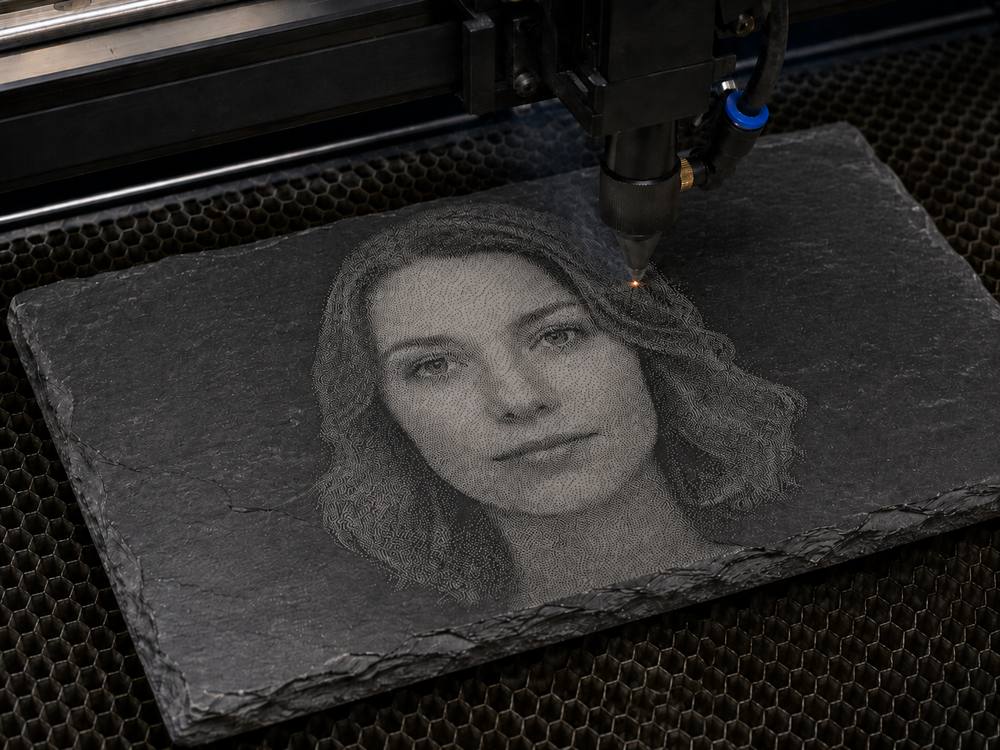
Photo portrait engraved on slate from a converted DXF file
Photo-to-engraving workflows. Illustration: bitmap-to-vector conversion is built to prepare photos for engraving on slate, wood, and metal.
Laser cutting a balsa wing profile from a prepared DXF file
Clean vector cutting. Illustration: clean, gap-free DXF geometry is designed to cut in smooth, continuous passes on laser and CNC machines.
Preview free before download Works in your browser Clean geometry output Built for CNC, lasers, plotters & waterjets Failed conversions never cost a token Tokens never expire
Upload → Preview → Download
More than artwork — a real toolpath

Output that's built to cut and mark, not just look right.

Most converters stop at geometry that looks correct on screen. DXF Studio produces an optimized toolpath for efficient machine motion: paths are reordered to reduce travel, and geometry is compensated for your tool diameter and laser beam width so the finished part matches the intended dimensions.

Optimized path orderReordered moves reduce unnecessary travel between cuts.
Beam & tool compensationGeometry offset for kerf and tool radius, so dimensions stay true.
Clean, simple geometryLINE-based output designed for many machine controllers.

See exactly what DXF Studio changes.

Every example here is genuine output from the tools you'll use — not illustrations.

Bitmap to DXF

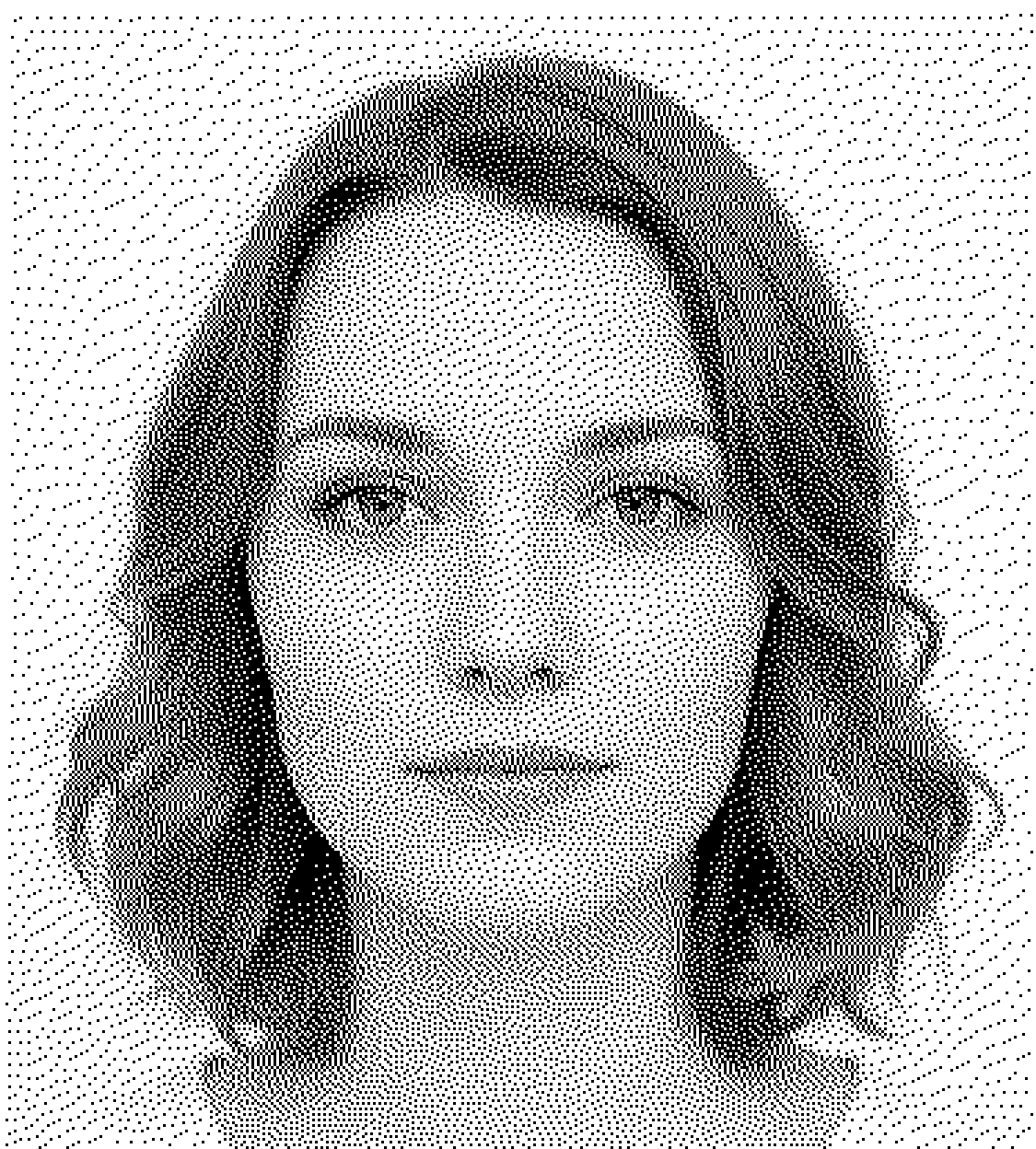
Bitmap image → vector DXF

Continuous-tone conversion rebuilds a photograph as thousands of clean vector elements, ready to engrave.

Open the Bitmap→DXF tool
Photophoto
Vector DXFvector
DXF Cleanup

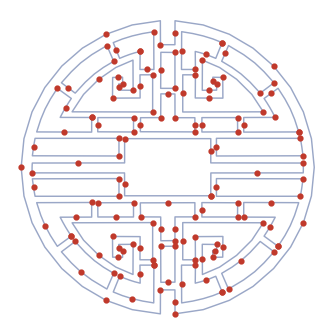
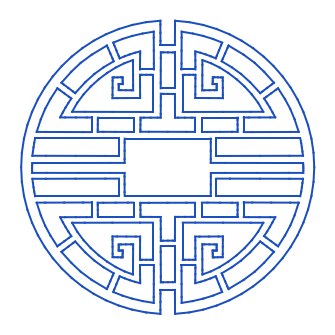
Problem DXF → cleaner geometry

DXF files with splines, duplicate entities, and gaps become clean LINE geometry, designed for better compatibility with many machine controllers.

Open the DXF Cleanup tool
Problem DXFmessy
Clean DXFclean
Optimization

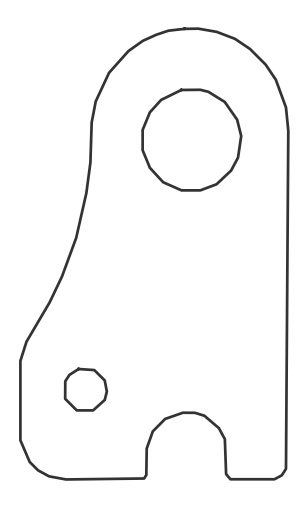
Random cutting order → optimized path order

Smarter path ordering reduces unnecessary travel moves — less wasted motion, the same cut.

−95.4%travel moves on this part
Open the Hatch & Optimize tool
Beforebefore
Afterafter
Hatch Fills

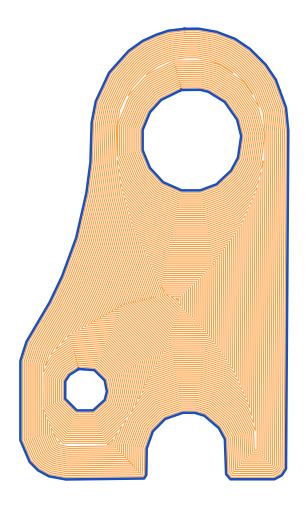
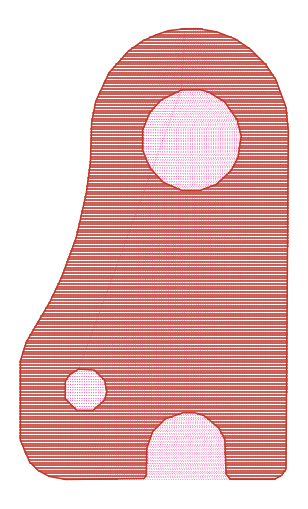
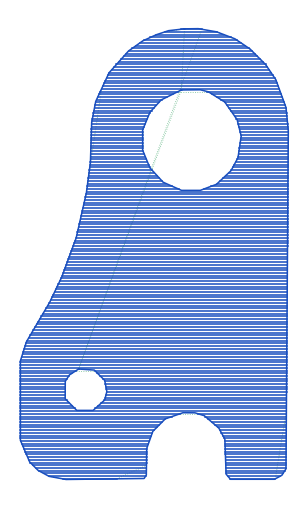
Outline → hatch-filled engraving pattern

Add controlled hatch patterns to any closed shape, with optimized fill order built in.

Open the Hatch Fill tool
Outlineoutline
Hatch fillhatched

How it actually works

No AI guesswork, no raster tricks — deterministic geometry processing that gives the same result every time. Here's what happens to your file:

1

Parse

Every entity in your DXF is read individually — lines, arcs, polylines, splines. Nothing is rasterized or approximated behind your back.

2

Clean

Duplicate segments, gaps, and unsupported geometry are detected and repaired. Splines and arcs become simple LINE geometry that machine controllers accept without complaint.

3

Compensate

Hatch fills are generated around your actual tool diameter or beam width — the geometry you download is what the machine cuts, so finished dimensions stay true.

4

Optimize

The cutting order is re-sequenced to minimize rapid travel. The marking emulation shows you the optimized path in motion — before you spend anything.

Don't take our word for it — inspect a real output file.

Download genuine DXF Studio output below: free, no account, no token. Open it in LightBurn, Fusion, SheetCAM, or whatever CAM software you trust, and judge the geometry yourself.

Simple token pricing

Buy tokens once, use them whenever you need. No subscription, no expiry games.

1 token = unlimited modify + download of one loaded file for that work session. Load a file, spend a token, and keep refining and re-downloading it until you're done — no extra charge for that file in that session.

1 token
$3.95
one file
$3.95 / token
Get started →
5 tokens
$14.95
five files
$2.99 / token
Get started →
Best value
20 tokens
$49.00
twenty files
$2.45 / token
Get started →
100 tokens
$199.00
hundred files
$1.99 / token
Get started →
You only pay for output you've already seen. The preview is always free — inspect the full result, toolpath emulation included, before spending anything · Failed conversions never cost a token · Tokens never expire.

Upload first. Pay only if the preview is useful.

You can upload, process, and inspect the result before spending a token. Download only when the output looks right for your workflow.

1
Upload your file
2
Preview the result free
3
Download when it looks right
Try a file free →

Who's behind this

DXF Studio started as an in-house tool for preparing engraving and cutting files for my own machines: the converters I tried produced geometry that looked right on screen and behaved badly on the machine, so I built the processing pipeline I needed and put it online.

Questions, a file that won't behave, or a result you're not happy with? Email [email protected] — it comes straight to me, not a ticket queue.

Frequently asked questions

Do I need an account to try it?

No. Upload a file and inspect the full preview — including the optimized toolpath emulation — without signing in. You only need an account (an email address) when you want to buy tokens and download.

Does every download cost a token?

No. 1 token unlocks one loaded file for your whole work session. Once a file is unlocked you can change settings, regenerate, and re-download it as many times as you like at no extra charge. You can even send it between tools (Cleanup ↔ Hatch) on the same token.

Do tokens expire?

Never. Buy a pack today and use the last token whenever you need it.

What happens if a conversion fails?

Nothing is charged. Tokens are only spent when you choose to unlock a download of a result you've already previewed — a failed or rejected conversion never consumes a token.

What if the downloaded file isn't usable on my machine?

That's exactly what the free preview is for — inspect the geometry and the toolpath emulation before you spend a token, so there are no surprises. If something still behaves unexpectedly on your controller, email [email protected] with the details: controller quirks are often fixable with a settings change, and your report makes the tool better for everyone.

What kind of DXF do I get?

Clean, simple LINE-based geometry in optimized cutting order, designed for broad compatibility with CNC, laser, plasma, plotter, and waterjet controllers — including older and budget controllers that choke on splines.

What happens to my uploaded file?

Your file is used only to generate your preview and your download. It is never published, shared, or used for anything else. See the Privacy page for details.

Guide How to clean up a DXF file for laser cutting → Splines, duplicates, gaps, and cut order — why files that look fine on screen fail on the machine. Guide How to fix DXF splines and gaps → Why controllers reject splines, what an open contour is, and how to make a rejected file work. Guide How to convert a photo to a DXF → Why you can't just "save as DXF," which images convert best, and how to get an engravable result.