See the trace before you pay
A real source image, and the vector DXF it produces — clean LINE geometry your CAM software imports without complaint.
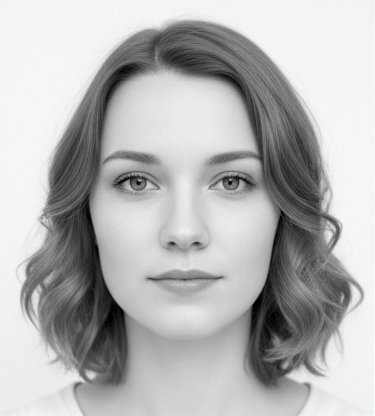
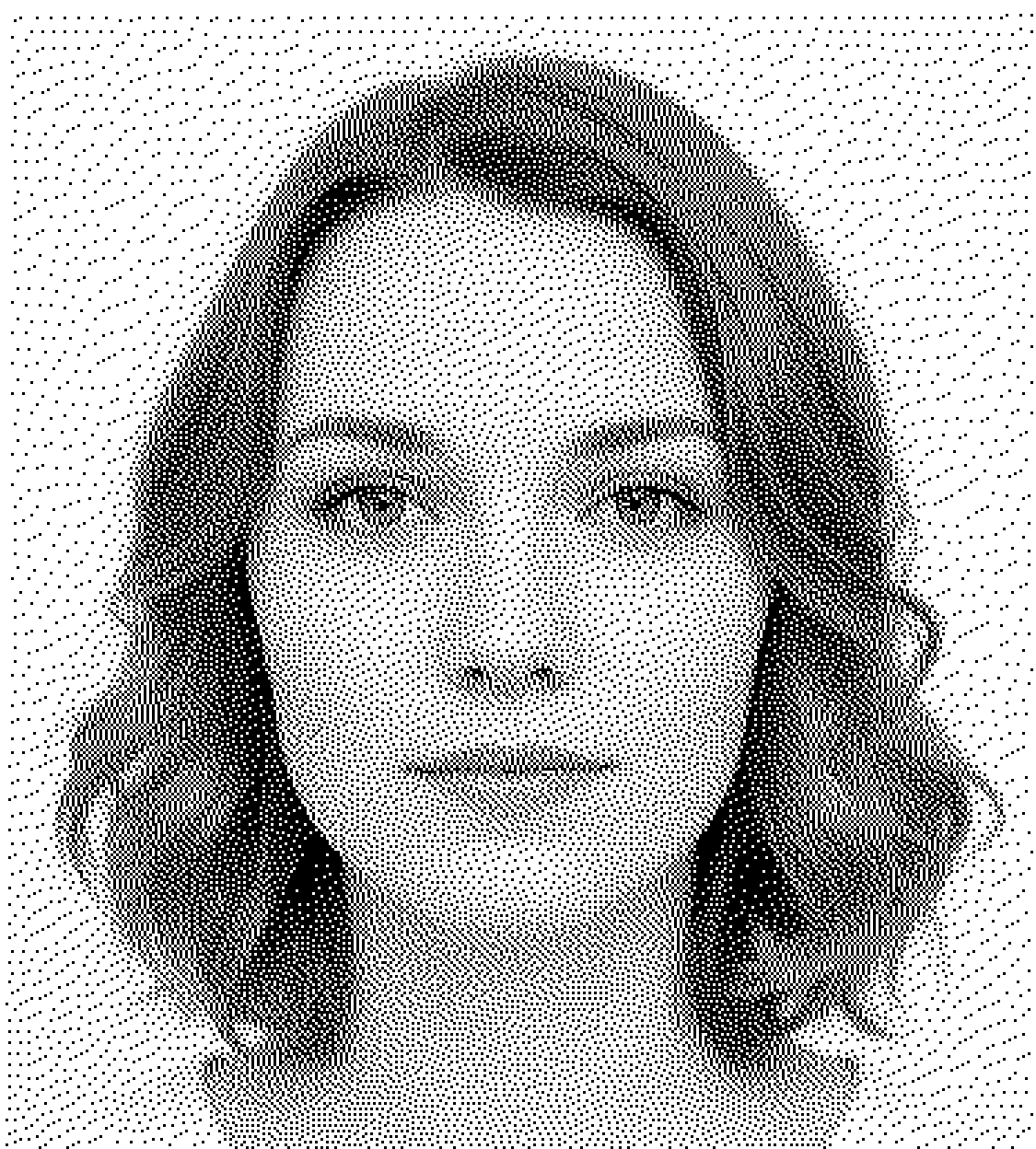
Deterministic — the same image and settings always produce the same clean R12 output.
Convert photos, logos, and graphics into clean, cut-ready vector DXF files — including true grayscale photo engraving via a dithered, halftone-style vector toolpath. Upload, preview the real result, and only pay if it’s right for your workflow.
A real source image, and the vector DXF it produces — clean LINE geometry your CAM software imports without complaint.
Deterministic — the same image and settings always produce the same clean R12 output.
DXF Studio traces your bitmap the right way for the source — not one generic filter for everything.
Continuous-tone dithering reproduces real grayscale as thousands of vector LINE elements — a vector halftone with genuine tonal depth. It is built for machines with no raster mode at all — plasma tables, waterjet, DXF-driven CNC routers, drag and rotary engravers — and for galvo/EZCAD systems, which do have a built-in bitmap mode but often give a poor photographic result on metal and coated stock. Ready to engrave on slate, wood, or metal.
For logos and line art. Traces crisp outlines and contours into vector geometry for cutting and marking.
For high-contrast graphics. Converts solid black-and-white artwork into filled vector shapes.
No AI guesswork, no raster tricks — deterministic geometry processing that gives the same result every time.
Drop in a JPG, PNG, or BMP. Nothing is published or shared — your image is used only to build your preview and download.
Your chosen mode converts the image into vector geometry — deterministically, so results are repeatable.
Output is simplified to clean LINE-based geometry designed for broad machine-controller compatibility.
Inspect the full result — including toolpath emulation — free, before you spend a token.
Most converters stop at geometry that looks correct on screen. DXF Studio produces clean LINE-based output in optimized cutting order — designed to behave on the machine, including older and budget controllers that choke on splines.
Upload, process, and inspect the result — including the toolpath emulation — before spending a token. Download only when the output looks right for your workflow.
You can upload JPG, PNG, BMP, and other common bitmap images and convert them to vector DXF artwork for engraving, marking, cutting, and tracing.
Use Continuous-Tone (Dithered) for photographs and grayscale engraving, Outline (Contours) for logos and line art, and Threshold Fill for high-contrast graphics. You can preview each mode free before paying.
Yes — that's exactly what the dithered continuous-tone mode is for. It converts the photo's tones into a halftone-style pattern of vector LINE geometry, so machines that can only follow paths — plasma tables, waterjet, DXF-driven CNC routers, drag and rotary engravers — can still produce genuine grayscale engraving. Galvo/EZCAD systems do have a built-in bitmap mode, so this is not a capability gap for them; it is a quality choice, and a vector halftone often reads better on metal and coated stock than EZCAD's own bitmap output.
No. DXF Studio uses deterministic geometry processing, not AI vectorization, so the same source image produces the same DXF output every time.
No. Upload an image and inspect the full preview without signing in. An account is only needed to buy tokens and download.
A photo to tonal DXF conversion is $29 per job, which is 8 tokens. It is priced as a job rather than as a file because continuous-tone conversion rebuilds the photograph as thousands of individually placed LINE elements. DXF repair, cleanup and hatch fills stay at $3.95 a file. There is no subscription and tokens never expire, and if you hold a larger pack the photo job spends 8 tokens from it, which works out below $29.