See the fill before you pay
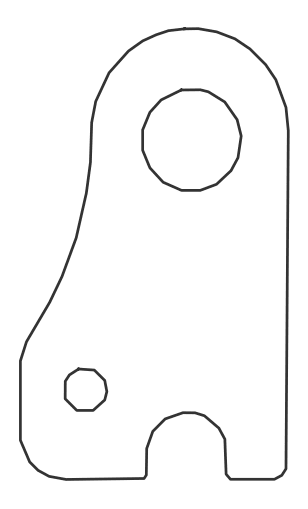
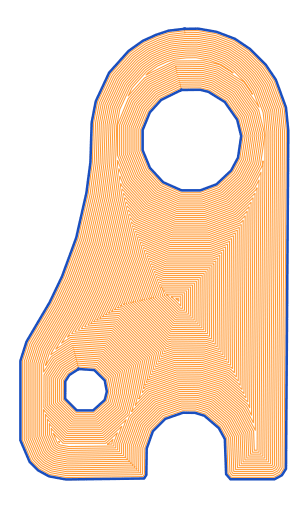
An outline-only shape, and the same shape with an optimized hatch fill — ready to engrave or cut.
Deterministic — the same shape and spacing always produce the same optimized fill.
Generate hatch, cross-hatch, spiral, and serpentine fill patterns inside closed shapes — with beam and tool compensation and optimized cut order built in. Preview the animated toolpath free before you pay.
An outline-only shape, and the same shape with an optimized hatch fill — ready to engrave or cut.
Deterministic — the same shape and spacing always produce the same optimized fill.
Controlled fill patterns for any closed shape, with optimized fill order built in.
Straight-line and crossed fills for even engraving and marking coverage.
Continuous inward fills that reduce lifts and travel on round and organic shapes.
Back-and-forth and offset patterns for fast, uniform fills and decorative effects.
Hatch fills are generated around your actual tool diameter or beam width, so finished dimensions stay true. If your CAM already applies kerf, set beam width to 0 here so the part is not compensated twice. Then the cut order is re-sequenced to minimise rapid travel — and the animated emulation shows it in motion before you spend anything.
Upload, process, and inspect the result — including the toolpath emulation — before spending a token. Download only when the output looks right for your workflow.
Hatch, cross-hatch, spiral, moiré, concentric, offset, parallel, and serpentine fill patterns inside any closed shape — for laser marking, engraving, and CNC.
No. Set beam width to 0 here. SheetCAM, Fusion 360, OMAX and punch CAM such as cncKad apply kerf themselves and expect the part drawn at final size, so a pre-offset DXF gets compensated twice and the part comes out wrong. Compensating here is the right choice when you send DXF straight to a controller with no CAM layer in between.
DXF Studio offsets hatch and cut geometry by your laser beam width or tool diameter, so finished parts match their drawn dimensions instead of coming out under- or over-sized. It is optional and disabled at 0. Use it when you send DXF straight to the controller; leave it at 0 when your CAM applies kerf itself.
The cutting order is re-sequenced to minimise rapid travel. The toolpath emulation shows cutting moves in blue and non-cutting travel in amber, so you can see the improvement before you cut.
It depends on your workflow, and it is worth being precise about this. The order is written into the DXF itself, so it is honoured by controllers and CAM that run the file in the order it is stored. LightBurn, SheetCAM, Fusion 360 and most punch and plasma CAM re-sort geometry on import, and several do it by default, so on those the ordering is replaced by their own optimizer and the gain you see in our emulation will not carry through. If you run DXF straight to the machine, or your CAM has its own reordering turned off, the ordering is doing real work. If you are not sure, run one file both ways and compare the cycle time.
No. Generate the fill and inspect the full toolpath emulation without signing in. An account is only needed to buy tokens and download.
Yes. One token unlocks a loaded file across Bitmap to DXF, Cleanup & Repair, and Hatch & Optimize for that whole work session.